
Sign in to your StratTrade account. The installer is available from Licenses & Downloads for an active license.
Download StratTrade from your account
Open My Account, go to Licenses & Downloads, locate your active license, and select Download App.
When the download is complete, open the StratTrade setup file to start the installer.
Open My AccountRun the installer and choose the install location
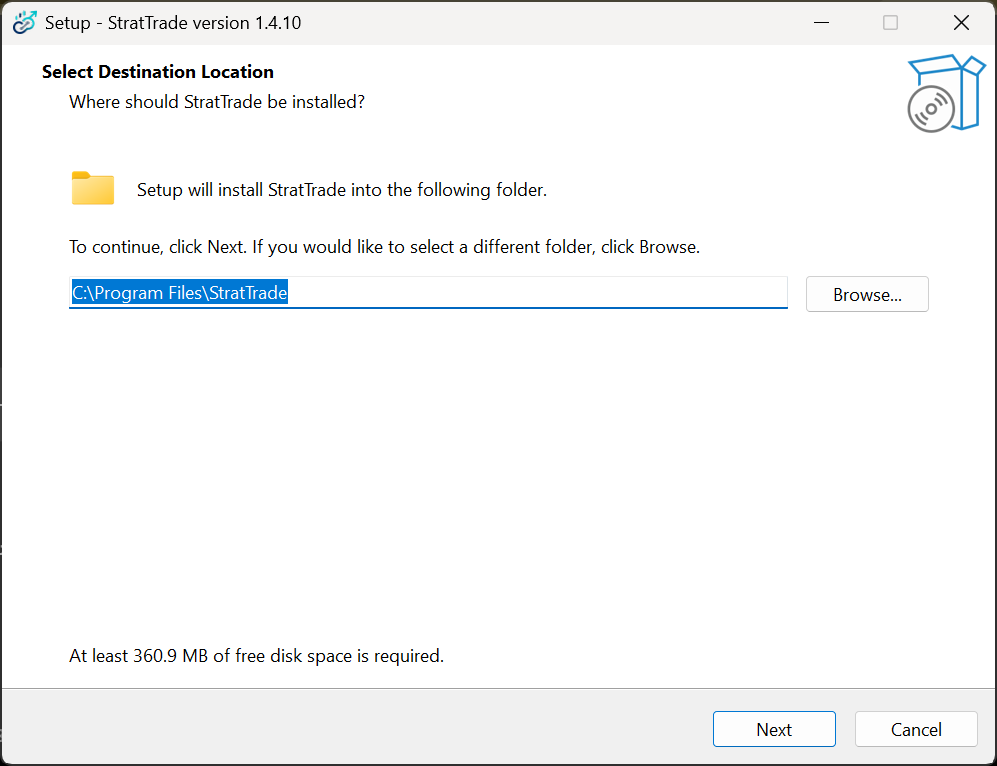
The installer uses the following folder by default: C:\Program Files\StratTrade
Keep the default folder and select Next, or choose Browse if you want a different installation location.
Choose whether to create a desktop shortcut
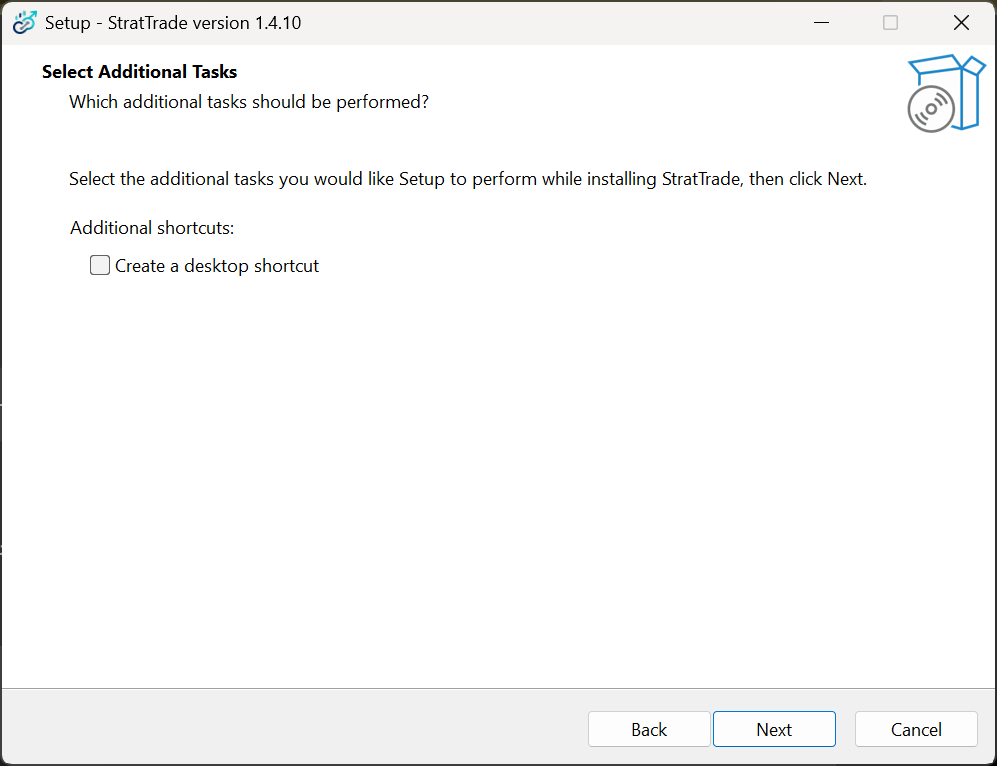
Select Create a desktop shortcut if you want a StratTrade shortcut on the Windows desktop. Leave it unchecked if you do not need one, then select Next.
Finish the installation
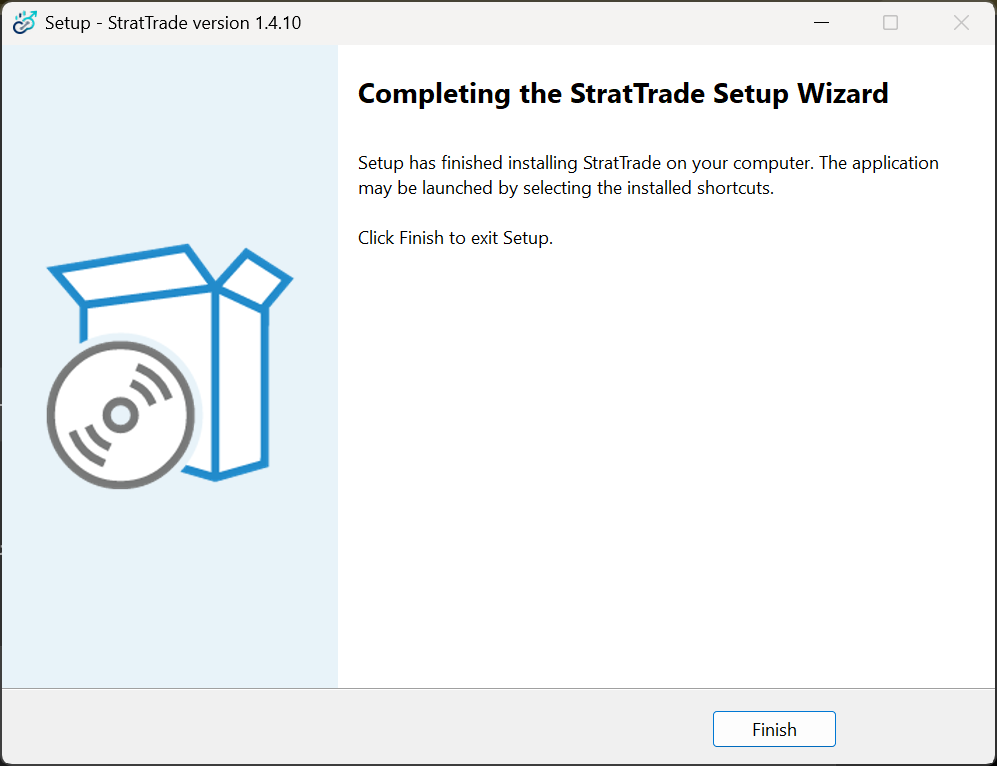
Setup copies the application files to your computer. When the Completing the StratTrade Setup Wizard screen appears, select Finish to close the installer.
You can then launch StratTrade using the installed shortcuts.
Installation complete
StratTrade is now installed. The next guide will cover license activation.