
Install StratTrade first and make sure you can access the Licenses & Downloads section of your account.
Copy your license key
Sign in to My Account and open Licenses & Downloads. Find the license you want to activate and select Copy License Key.
Keep the license key private. It is used to authorize StratTrade on your permitted device.
Open Licenses & DownloadsOpen the License / Activation screen
Launch StratTrade, then open the License section from the application navigation to reach the activation screen.
Paste the license key you copied from your account into the license key field.
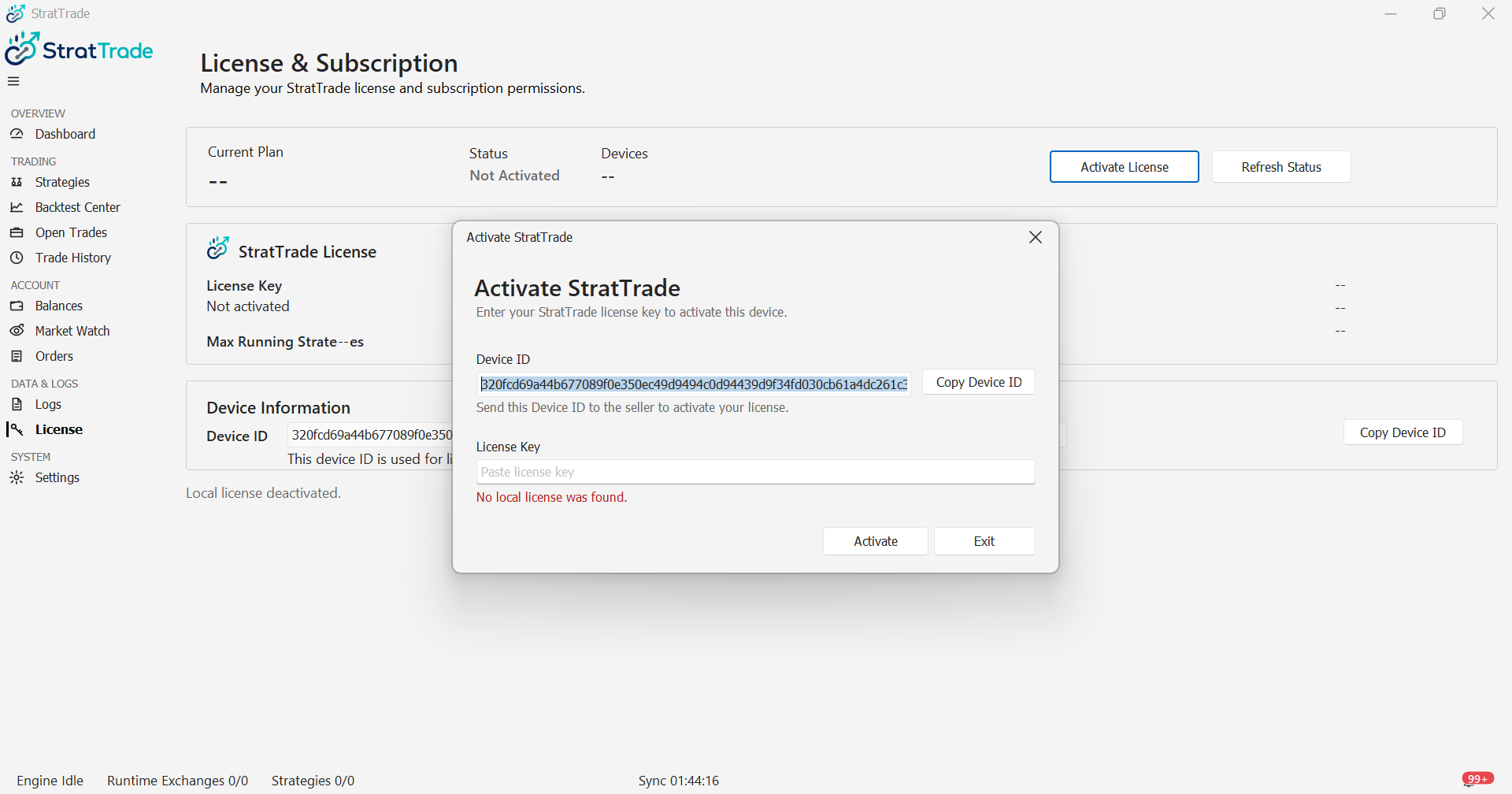
Activate StratTrade on this device
Select Activate. StratTrade validates the license and registers the current device when the license is eligible for activation.
After activation succeeds, confirm that the license status is shown as active before continuing with exchange setup and strategy configuration.
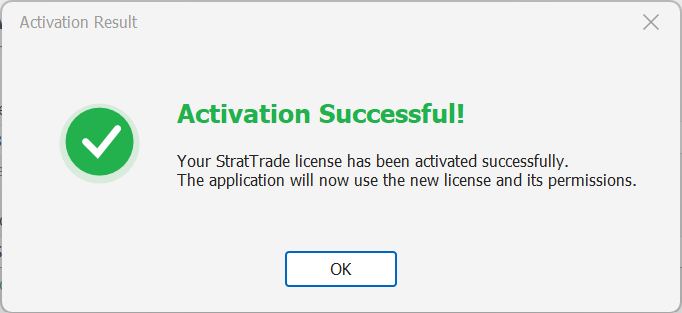
If activation fails
First, copy the license key again from Licenses & Downloads and make sure the license is active.
If the problem continues, keep the exact activation error message and your Device ID, then contact StratTrade Support so the issue can be checked accurately.
Activation complete
Your StratTrade installation is ready for the next setup steps.