
Use exchange credentials intended for trading only. Keep withdrawal and transfer permissions disabled.
Open Exchange API Keys
Launch StratTrade, open Settings, then select the API Keys tab. The Exchange API Keys window is used to manage exchange credentials.
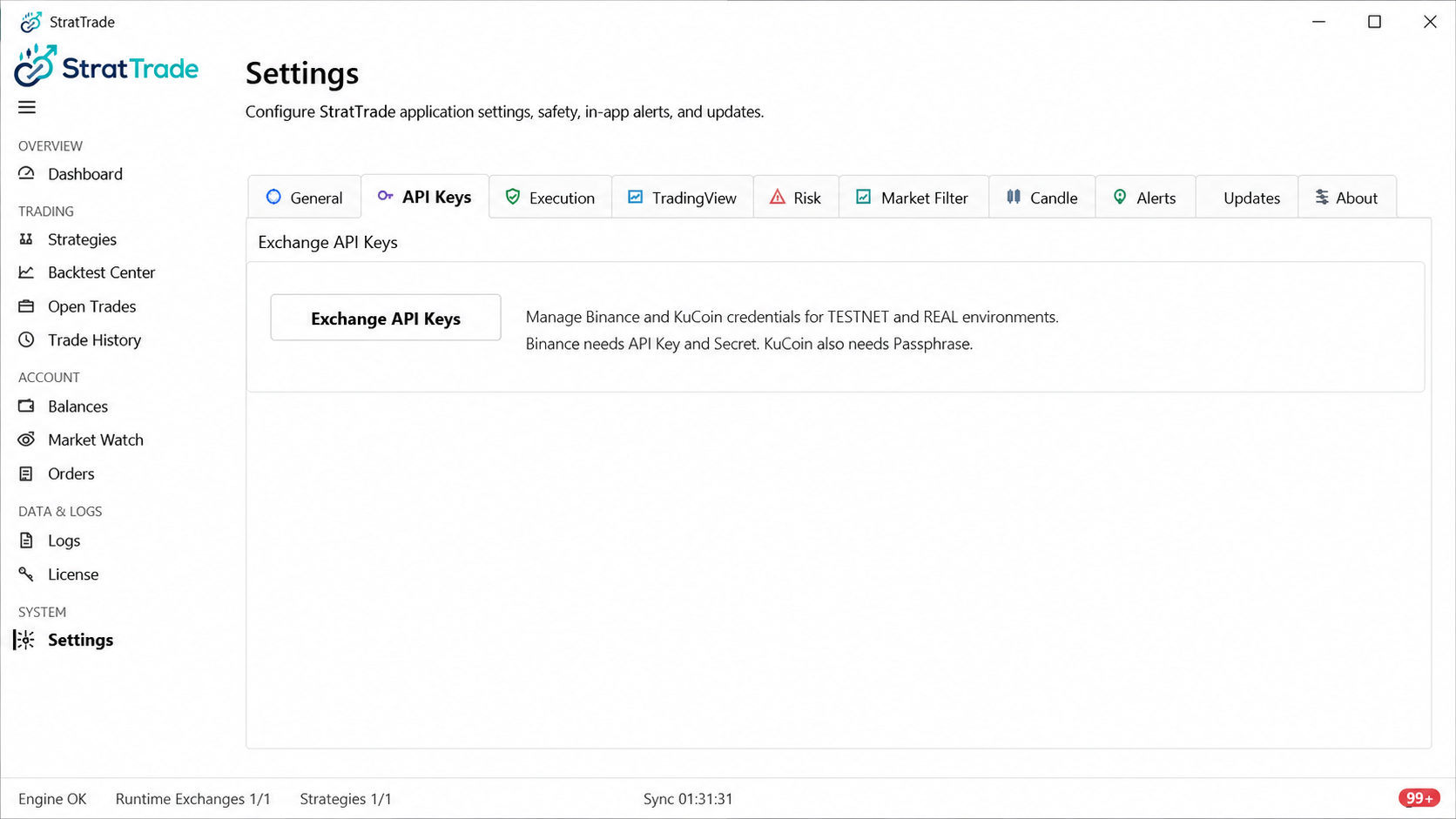
Select Binance and the correct environment
Choose Binance as the platform. Select REAL for your production Binance account or TESTNET when you are using Binance test credentials.
The credentials must belong to the same environment you select in StratTrade.
Enter the Binance credentials required by the selected authentication mode
Enter the API key and the additional credential required by the authentication mode shown in StratTrade. Depending on the configured mode, this can include a private key file.
Do not paste credentials into support tickets or public screenshots.
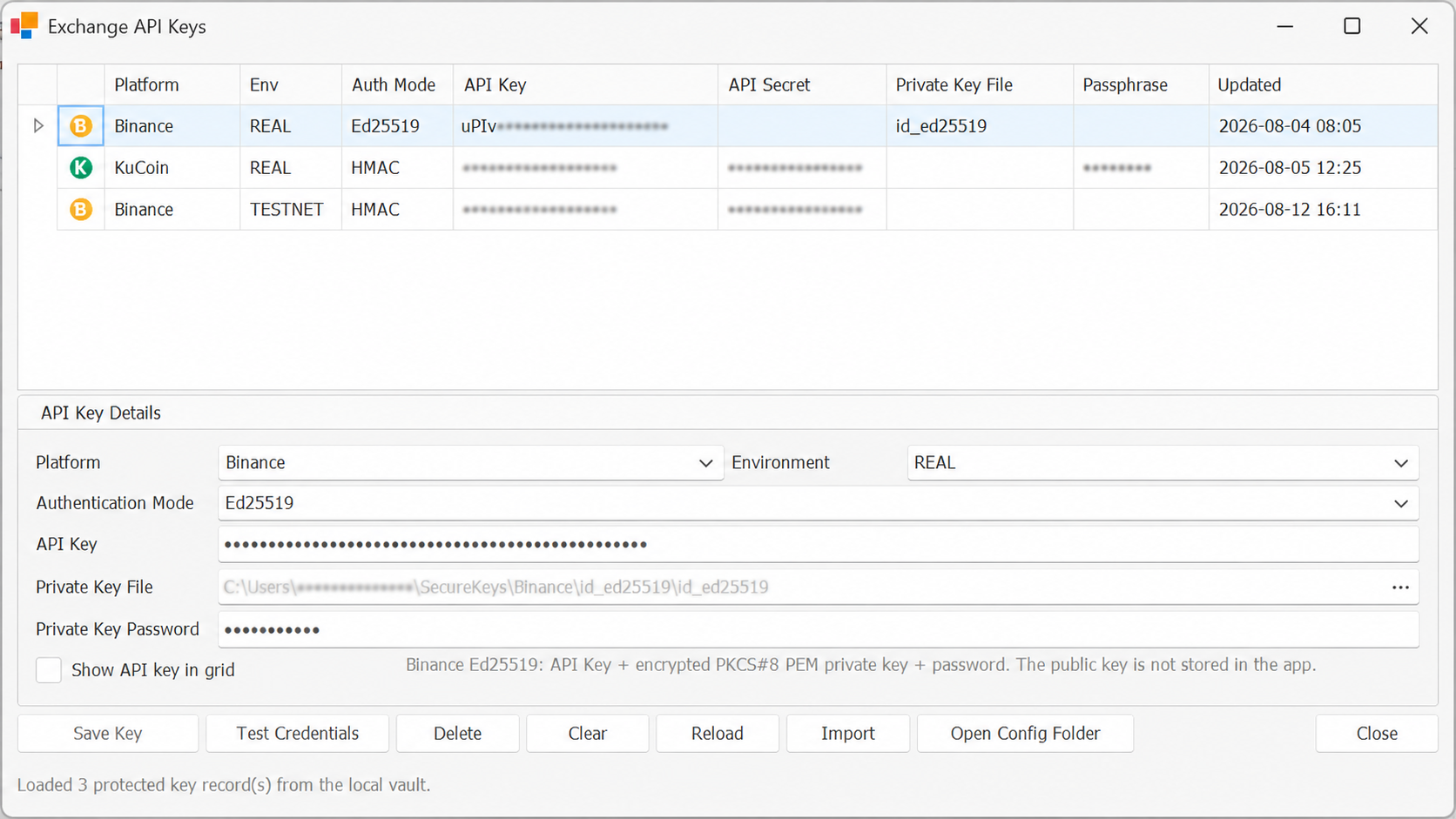
Test the credentials and save the key
Use Test Credentials before saving. If the test succeeds, save the key and confirm that Binance appears as available or connected in StratTrade.
If the test fails, confirm the selected environment, authentication mode and exchange-side API permissions before trying again.
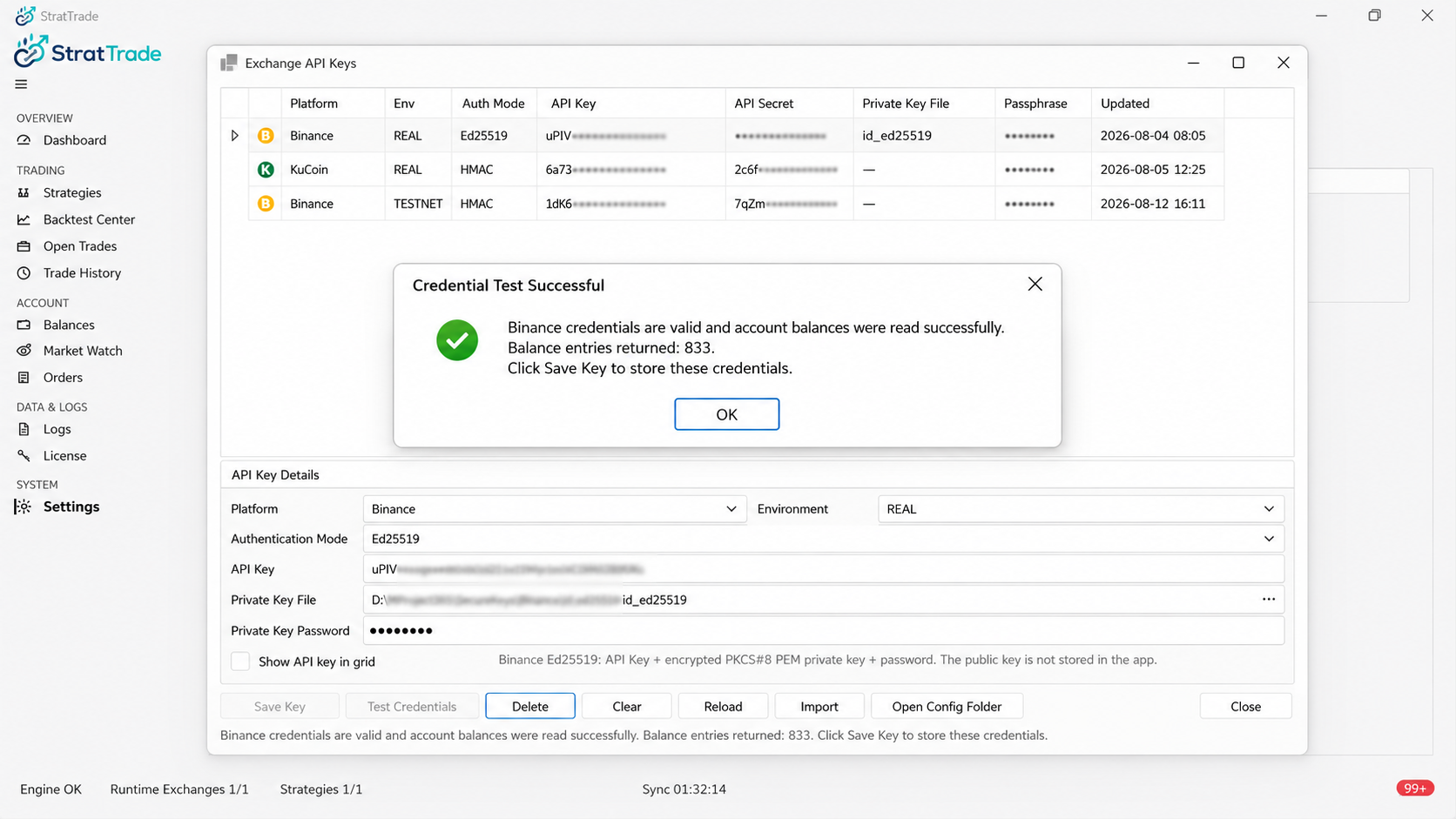
Binance setup complete
You can now configure strategies that use your saved Binance connection.